
Sagar Club Profile & Settings
Five minutes on the Account page makes your Sagar Club account easy to recover and hard to steal.
Sagar Club 2026 · Adults 18+ only · Updated October 2026
Quick answer
Write down your UID, change the default nickname, bind an email and turn on login alerts – in that order.
On this page
— SCREEN
The Account page, numbered
Four settings worth doing first.
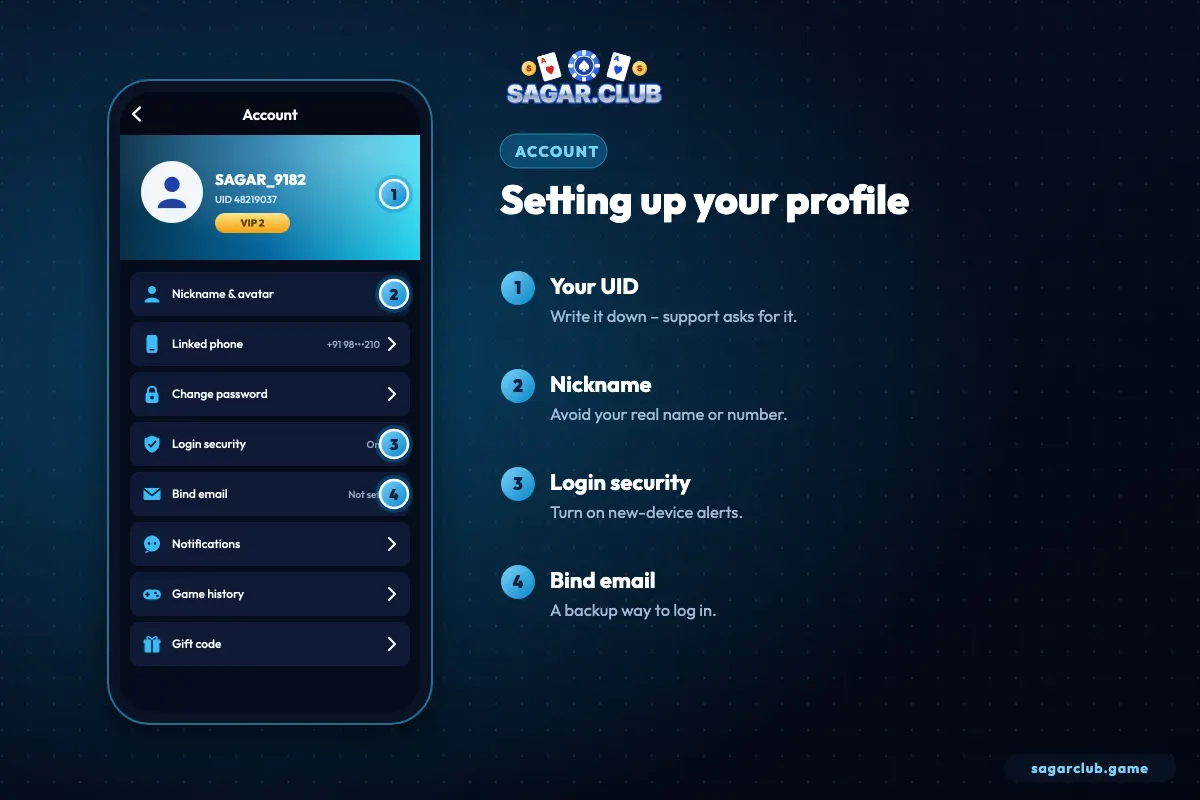
- UID – your permanent account number.
- Nickname – not your real name.
- Login security – new-device alerts.
- Bind email – a backup login.
— ROWS
Every row on the page
What each one does.
| Row | Purpose |
|---|---|
| Nickname & avatar | How others see you |
| Linked phone | Login ID and reset channel |
| Change password | Set a new one |
| Login security | Devices and alerts |
| Bind email | Backup login |
| Notifications | What alerts you get |
| Game history | Your past rounds |
| Gift code | Redeem codes |
— PRIVACY
Privacy habits
Small things that matter.
- No real name as nickname.
- No selfie as avatar.
- Crop UID and number from shared screenshots.
- Log out on borrowed phones.
— UID
Why your UID matters
The number support needs.
Your UID is a permanent number attached to your Sagar Club account. Unlike your nickname, it never changes, and unlike your phone number, it’s safe to share with official support. Every help request goes faster when it starts with your UID. Write it in a note on your phone today.
— NOTIFICATIONS
Choosing notifications
Useful alerts, not noise.
| Alert | Recommendation |
|---|---|
| Login alerts | Keep on – security |
| Support replies | Keep on |
| Gift-code reminders | Optional |
| Event reminders | Optional – turn off if they pull you back in |
— NICKNAME
Choosing a good nickname
Visible to others, so choose wisely.
Your nickname appears in places other players may see. A good nickname is short, memorable and reveals nothing personal – no full name, no phone number, no city, no birth year. Avoid anything that could be mistaken for staff or support, such as words like ‘admin’ or ‘official’. You can change it later, but it’s easiest to pick a good one on day one.
Avatars follow the same idea: choose one of the built-in images rather than a personal photo.
— HISTORY
Using your game history
A mirror for your habits.
Account → Game history lists every round you’ve taken part in, with times. Beyond checking individual rounds, it’s an honest record of how you use the app. Scroll back through a week and look at the timestamps: how long were your sessions, and were they at times you intended? If you notice late-night sessions or ones that ran far past your plan, use that as a prompt to set firmer limits.
— LINKED NUMBER
Changing your linked number
Plan it before switching SIMs.
If you’re changing your mobile number, update your Sagar Club profile while the old SIM still works – the change usually needs a code sent to the old number. If the old number is already gone, contact customer service with your UID; they’ll explain how they verify ownership before linking the new number. Binding an email beforehand makes this far easier.
— RECAP
Profile setup in five minutes
Do it once.
Your Sagar Club profile is where your account becomes safe and personal. Note your UID, which never changes and is what support needs. Replace the default nickname with one that reveals nothing about you, and choose a built-in avatar instead of a photo. Bind an email that you actively use, with its own strong password. Turn on login alerts and keep support-reply notifications on, while switching off any reminders that pull you back into the app more than you’d like. Finally, glance at your game history once a week to see whether your sessions match the limits you planned.
Open Sagar Club the right way
Use the official app or website – one Sagar Club account works on every device.
— FAQ
Frequently asked questions
Where is my UID?
Top of the Account page.
Can other players see my number?
No.
Can I hide my UID from other players?
Other players don’t need your UID. Avoid sharing screenshots that show it, except with official support.
How do I turn off event notifications?
Open the notification settings in your profile and switch off event reminders while keeping login alerts on.