
Sagar Club on iPhone
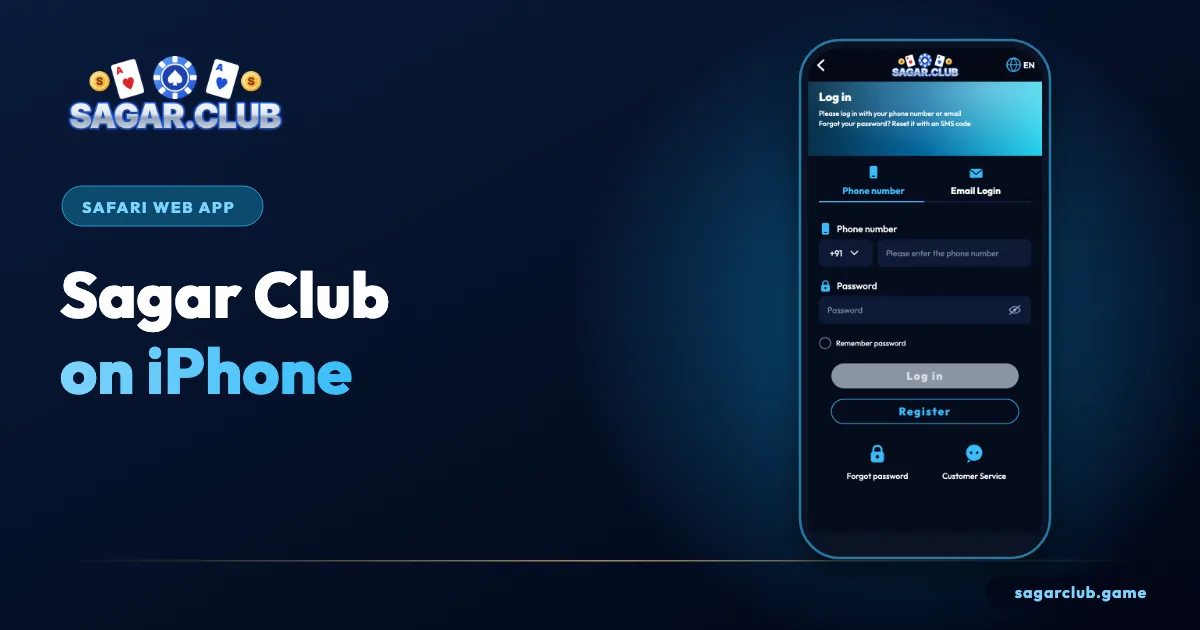
On iPhone, Sagar Club runs as a home-screen web app from Safari – full-screen, remembered login, automatic updates.
Sagar Club 2026 · Adults 18+ only · Updated October 2026
Quick answer
Open the official Sagar Club site in Safari, tap Share, then Add to Home Screen. Open the new icon and log in. No App Store download and no profile is needed.
On this page
— SETUP
Adding the home-screen app
Four taps.
- Safari → official site (not Private mode).
- Share button.
- Add to Home Screen → Add.
- Open the icon; log in.
— LOGOUTS
Why iPhone keeps logging you out
Two settings cause almost all of it.
| Cause | Effect | Fix |
|---|---|---|
| Private Browsing | The app forgets you each time | Remove the icon; add it again outside Private mode |
| Block All Cookies | No site can keep you logged in | Settings → Safari → turn it off |
| Cleared website data | Logs you out once | Log in again |
— ALERTS
Notifications on iPhone
iOS 16.4 and later.
Open Sagar Club from its home-screen icon and allow notifications when asked. If you said no, go to Settings → Notifications → Sagar Club.
— PROFILES
Never install a profile
The one real iPhone risk.
Fake sites ask iPhone users to install a ‘configuration profile’ or ‘certificate’. That gives a stranger control over your phone. The real Sagar Club never needs one – if you installed one, remove it in Settings → General → VPN & Device Management.
— HOW IT WORKS
Why iPhone uses a web app
Same account, no App Store.
A home-screen web app on iPhone is a website that behaves like an app: it gets its own icon, opens without the Safari address bar, and remembers your login. It updates automatically every time it loads, so there’s nothing to install or update manually. Your Sagar Club account, history and rewards are exactly the same as on Android or a laptop.
Because it’s still Safari underneath, Safari’s privacy settings apply. That’s why Private Browsing and ‘Block All Cookies’ cause logouts – they stop the site from remembering you.
— IPAD
On iPad
Same steps, bigger screen.
The steps are identical on iPad: Safari → Share → Add to Home Screen. The layout appears as a phone-width column; rotate to portrait for the most natural view.
— EVERYDAY
Using Sagar Club day to day on iPhone
It feels like a normal app.
Once the home-screen icon is in place, Sagar Club on iPhone behaves much like any other app. It opens full-screen, appears in the app switcher, keeps you logged in and shows notifications if you allowed them. You can move the icon into a folder, put it on a second page or remove it at any time without affecting your account.
Because the web app updates every time it loads, you’ll always be on the latest version. There’s no update button to press and nothing to download – a big advantage over installed apps.
— STORAGE
Clearing Safari data – what happens
One effect to know.
If you clear Safari’s history and website data (Settings → Safari → Clear History and Website Data), the Sagar Club web app forgets your login and you’ll need to sign in again. Nothing happens to your account itself. If you clear data regularly for privacy, keep your password in the iPhone password manager so signing back in is quick.
Screen Time limits also apply to home-screen web apps, which makes iPhone one of the easiest devices on which to set a daily time limit for Sagar Club.
— OLDER IPHONES
Older iPhones and iOS versions
What to expect.
Sagar Club runs in Safari, so any iPhone that receives reasonably recent iOS updates will cope well with the lottery rooms. Notifications for web apps need iOS 16.4 or newer. On very old models, graphics-heavy games may stutter; stick to WinGo, K3 and 5D for the smoothest experience, and keep iOS up to date for security as well as speed.
— RECAP
Sagar Club on iPhone – the essentials
What to remember.
On iPhone, Sagar Club runs as a home-screen web app added from Safari. Use a normal tab, not Private Browsing, and keep ‘Block All Cookies’ switched off so the app can remember your login. It updates itself every time it opens and receives notifications on iOS 16.4 and later if you allow them. There is no App Store version, and the real app never asks you to install a profile or certificate. Screen Time limits work with home-screen web apps, which makes iPhone one of the easiest devices on which to keep your sessions within the limits you set for yourself.
Open Sagar Club the right way
Use the official app or website – one Sagar Club account works on every device.
— FAQ
Frequently asked questions
Is there an App Store app?
No – use Safari’s Add to Home Screen.
Does it update automatically?
Yes.