
Sagar Club Login
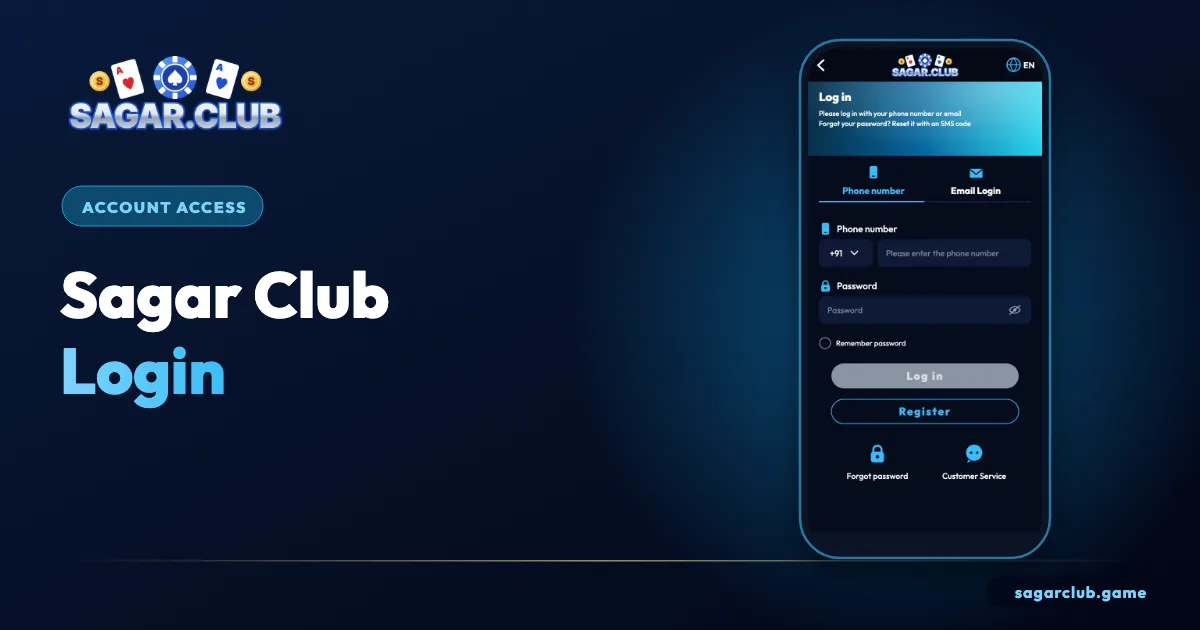
Sign in to Sagar Club with your registered number and password – on the app, iPhone or a laptop. Every step is marked on the screenshot below.
Phone login Email login No OTP needed
Sagar Club 2026 · Adults 18+ only · Updated October 2026
Quick answer
For a Sagar Club login (Sagarclub login), open the app or official site, tap Log in, type your ten-digit number and your password, then tap Log in. A normal login never needs an SMS code – codes are only for registering and resetting a password.
On this page
- How to log in, marked on the screen
- Logging in with email instead
- What each login message means
- New phone, laptop or iPhone
- Keep your login yours
- What happens when you tap Log in
- Logging in on a phone that isn’t yours
- A one-minute login checklist
- Making Sagar Club login effortless
- Login times, maintenance and the notice line
- Five things to remember about Sagar Club login
- Sagar Club login in one paragraph
- FAQs
— STEPS
How to log in, marked on the screen
Four taps from welcome screen to lobby.
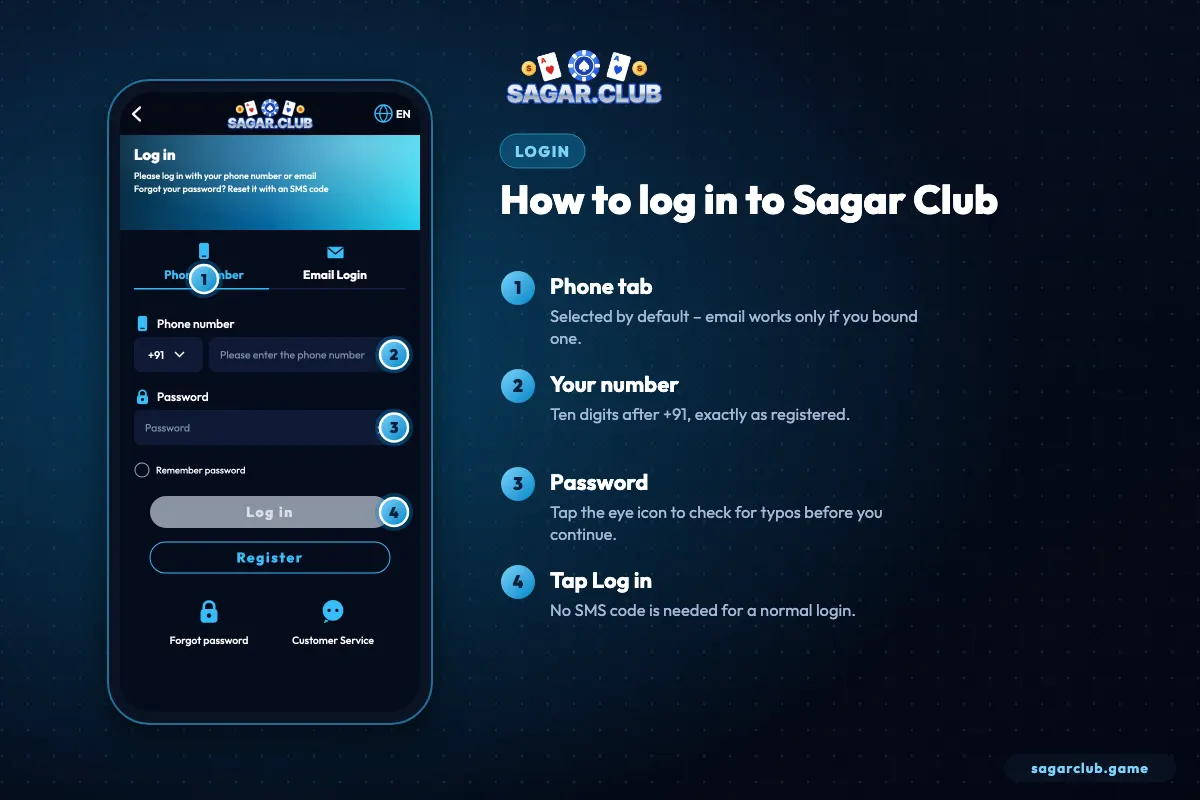
- The Phone number tab is selected by default.
- Type your ten digits after +91 – no leading zero.
- Type your password; the eye icon reveals typos.
- Tap Log in – your nickname and UID appear in the lobby.
Logging in with email instead
A backup route – only after you’ve bound an email.
Email login doesn’t create a separate account; it’s another door into the same one. It only works after you’ve bound an address in your profile. The password is the same one you use with your number. It’s most useful when your SIM is lost, broken or abroad – exactly the moments you can’t receive SMS – which is why binding an email on day one is so worthwhile.
— ERRORS
What each login message means
Read the message, then apply the matching fix.
| Message | Usual cause | Fix |
|---|---|---|
| Account does not exist | Number typed with 0/+91, or registered on another SIM | Retype ten digits; try your other number |
| Incorrect password | Typo, capital letter, old password | Check with the eye icon; reset after two tries |
| Too many attempts | Several wrong passwords in a row | Wait about 30 minutes, then reset |
| Network error | Weak signal, VPN, hotel Wi-Fi | Switch network; VPN off; accept Wi-Fi terms |
| Session expired | You signed in elsewhere | Log in again; check alerts if it wasn’t you |
Longer explanations, including locks and security holds: login errors.
— DEVICES
New phone, laptop or iPhone
Same account everywhere – only the route changes.
New phone
Install from the official site and log in. Your history and VIP level follow your account.
Laptop
Any modern browser. On shared machines use a private window and log out.
iPhone
Add Sagar Club to your home screen from Safari – see Sagar Club on iPhone.
Two phones
Allowed, but a fresh login can sign out the older device.
— SAFETY
Keep your login yours
The three habits that matter.
- Use a password that exists nowhere else.
- Never share an OTP – support never asks.
- Open Sagar Club only from the app or a bookmark.
- Turn on login alerts and act on unexpected ones.
- Log out on any device that isn’t yours.
Full checklist: account security.
— BEHIND THE SCREEN
What happens when you tap Log in
Why the app sometimes asks you to sign in again.
When your number and password match, Sagar Club creates a session for that device and remembers it, so you aren’t asked again every time you open the app. That session is what keeps you signed in. It ends when you log out, when you change your password, when the app’s data is cleared, or when a newer login on another device replaces it.
That last point explains most ‘random’ logouts. If you use Sagar Club on a phone and a laptop, signing in on one can end the session on the other. It’s a security feature: it makes it obvious when someone else signs in to your account, because you’re suddenly logged out. If that happens and it wasn’t you, change your password straight away – that ends every other session at once.
— SHARED PHONES
Logging in on a phone that isn’t yours
Sometimes necessary – do it carefully.
If you must use a friend’s or family member’s phone, use the browser rather than installing the app, open a private or incognito tab, and decline when the browser offers to save your password. When you’re done, tap Log out in Sagar Club and then close the private tab. Never tick ‘remember me’ on a device you don’t control, and never let someone else type your password for you.
On your own phone, a screen lock is the single biggest protection for your Sagar Club login. A phone that unlocks with a swipe gives anyone who picks it up full access to every app that remembers you.
— CHECKLIST
A one-minute login checklist
Run through it when something feels off.
- The address or app is the official one.
- Ten digits typed, no zero or +91.
- Caps Lock / auto-capitalisation checked.
- Signal is good; VPN is off.
- App is up to date.
- After two failed tries: reset, don’t keep guessing.
— EVERYDAY USE
Making Sagar Club login effortless
Set it up once and forget about it.
The smoothest Sagar Club login is the one you hardly notice. On your own phone, install the app from the official site, sign in once and let it remember you. On iPhone, add the home-screen icon from a normal Safari tab so the session sticks. Save the password in your phone’s built-in password manager, which fills it in automatically when the app ever asks again. With those three things in place, opening Sagar Club becomes a single tap rather than a small chore.
If you switch between devices a lot, expect the occasional sign-out. That’s the app protecting you, not a fault. Just log in again on the device you’re using. What you should never do is share one login between two people – a session that keeps jumping between phones looks exactly like a takeover, and it can trigger a security hold.
— TIME ZONES
Login times, maintenance and the notice line
Why the app is sometimes briefly unavailable.
Like any app, Sagar Club has short maintenance windows when updates are installed on the servers. During those minutes, login may fail or the lobby may not load. The scrolling notice line in the lobby and the official channel usually announce maintenance in advance, with times given in India Standard Time. If you can’t log in and everything on your side looks fine, check the notice line or channel before trying anything drastic.
Once maintenance ends, the app may ask you to update. Accept it, then log in as usual. Your account, history and rewards are untouched by maintenance.
— REMEMBER
Five things to remember about Sagar Club login
The short version.
Your login ID is your ten-digit number. A normal login needs only your password – no SMS code. Codes appear only when you register or reset. A new login on another device can end the old session. And nobody from Sagar Club will ever ask you to read out a code or tell them your password; if anyone does, they’re trying to get into your account.
— QUICK RECAP
Sagar Club login in one paragraph
Everything above, condensed.
Open Sagar Club from the installed app, the iPhone home-screen icon or a bookmark – never from a forwarded link. Type your ten-digit number without a zero or +91, type your password, check it with the eye icon and tap Log in. No SMS code is needed. If it fails, read the exact message: ‘account does not exist’ points to the number, ‘incorrect password’ to the password, and a spinner to the connection. After two wrong passwords, reset rather than guess. Keep login alerts on, bind an email, and change your password immediately if you ever see a sign-in you don’t recognise. That’s the whole of Sagar Club login – simple, quick and safe when these habits are in place.
Open Sagar Club the right way
Use the official app or website – one Sagar Club account works on every device.
— FAQ
Frequently asked questions
Do I need an OTP to log in to Sagar Club?
No – only to register or reset a password.
Why does it say ‘account does not exist’?
Usually a typed zero or +91, or a different SIM.
Can I log in with email?
Yes, after binding an email in your profile.
Why was I logged out?
A login on another device, an update or cleared app data.